Tip
Schedule iMessages to Send Later
In the Messages app, you can schedule a text message to send at a specific time — up to 14 days in the future.
How to use it
- Open a conversation (or start a new one)
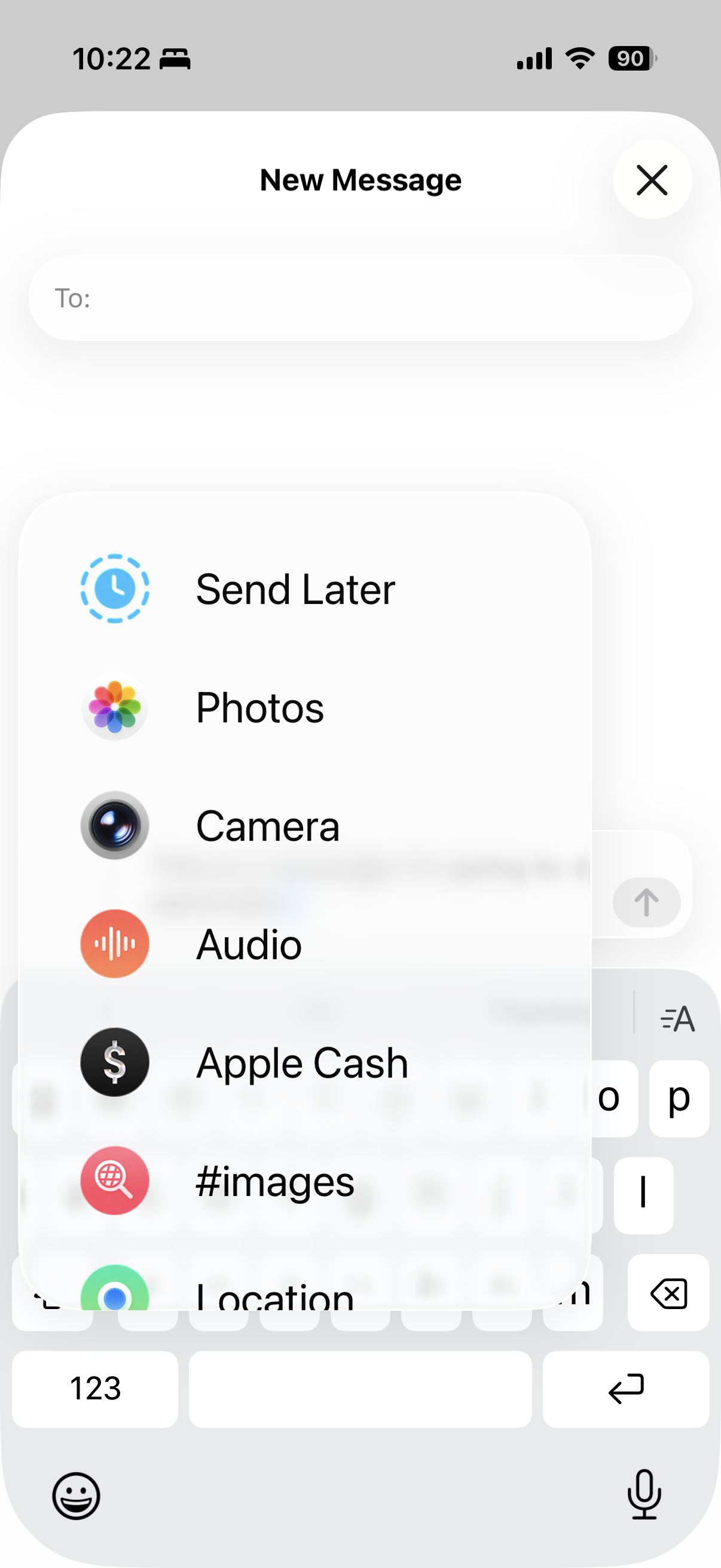
- Tap the + button to open apps
- Select Send Later
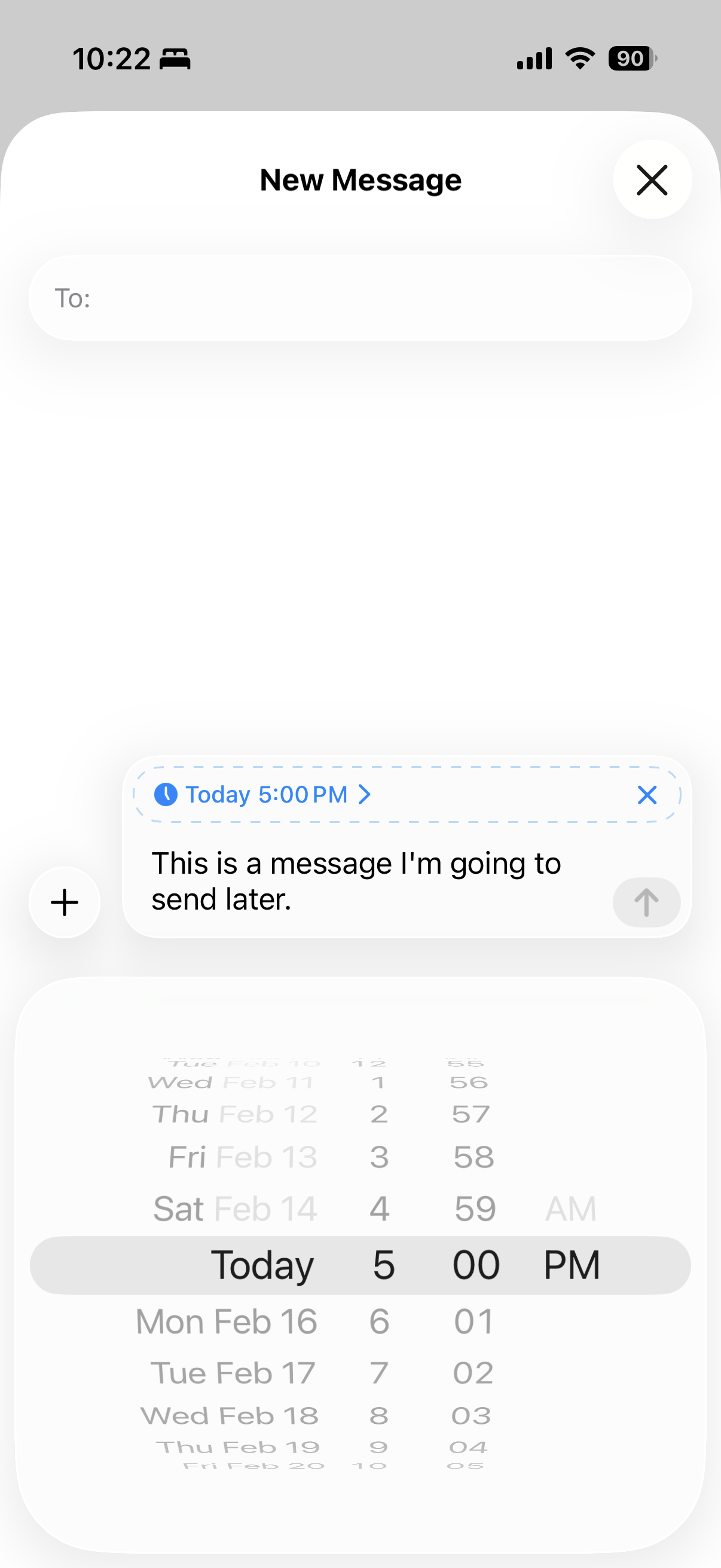
- Choose a date and time, then type your message and hit send
Good to know
- It works even if your phone is off. Scheduled messages are encrypted and stored on Apple servers, so they'll be delivered even if all your devices are offline when the send time arrives. Once sent, the message is removed from Apple's servers.
- Before the scheduled time, you can edit the message or reschedule it — just tap the scheduled message in the conversation.
- Scheduled messages appear with a dashed outline until they're actually sent, then they become a solid bubble like any other message.
For more details, see Apple's official guide on scheduling messages.