Recognize Music From Any App With Shazam
Hear a song you like — playing in a TikTok video, blasting on hold during a customer service call, or bumping in a game — and forget what it's called? Pull down Control Center and Shazam it on the spot.
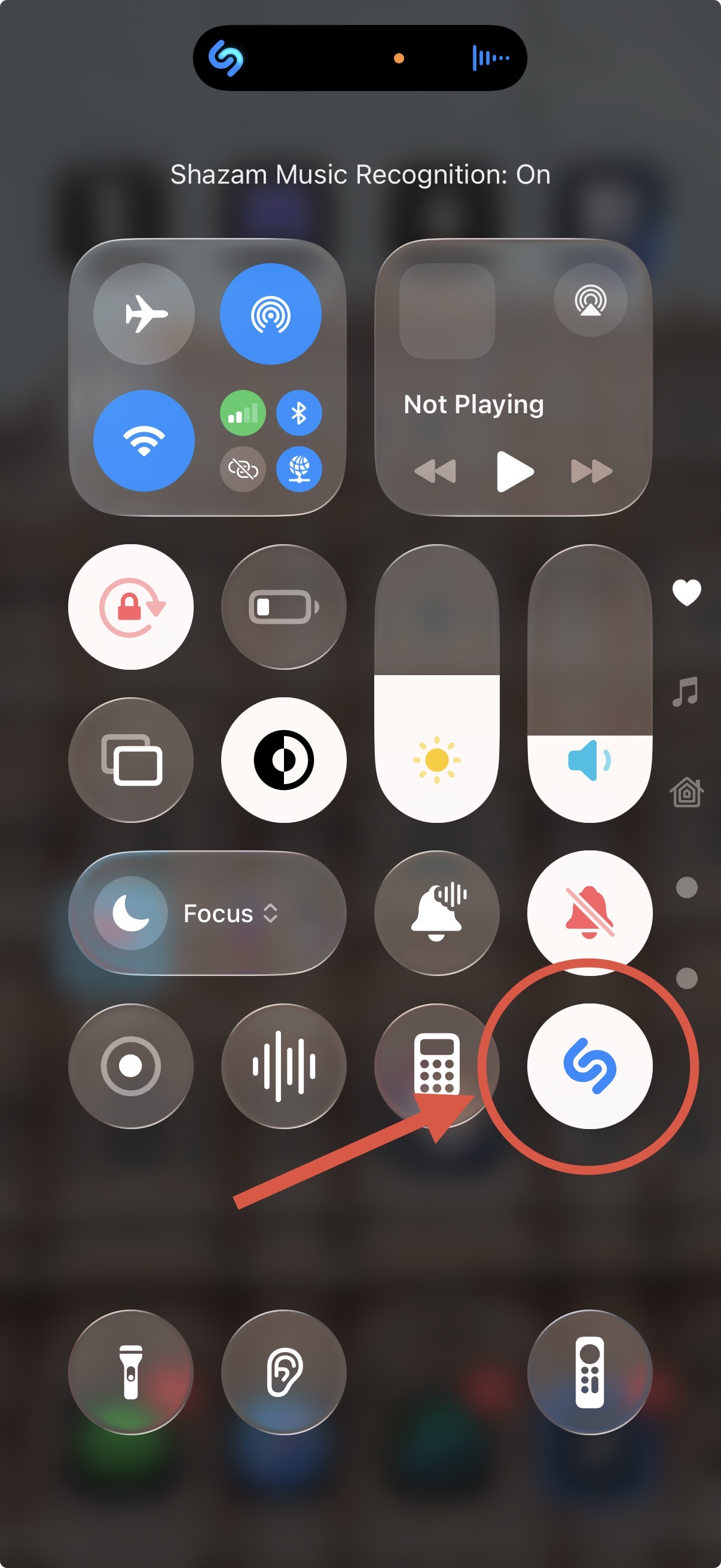
Swipe down to open Control Center and tap the Recognize Music button (the Shazam logo — a blue icon with a white fingerprint-like pattern). Your iPhone listens for a few seconds and shows you the song title and artist right on screen — without interrupting what you were doing.
This works from anywhere on your phone, no matter what app is open.
Setting it up
If you don't see the Recognize Music button in Control Center yet:
- Swipe down to open Control Center
- Tap the + button in the upper-left corner
- Tap Add a Control at the bottom of the screen
- Search for Music Recognition and tap it to add it
- Tap anywhere outside the controls grid to save — the Shazam button will now appear in Control Center every time you swipe down
Good to know
- Songs you identify are automatically saved to your Shazam history — accessible through the Shazam app or Music → Library.
- Works best when the audio is clearly audible. In loud environments or with earbuds in, try getting the phone closer to the sound source.
Bonus: let Shazam build you a playlist
If you identify songs regularly, you can have every match automatically added to an Apple Music playlist:
- Open the Shazam app
- Tap your profile picture (top right)
- Tap Apple Music Playlist
- Turn on Auto-Add to Apple Music
Every song you identify — including ones you Shazam from Control Center — goes straight into that playlist. Great for rediscovering things you heard in passing.
For more details, see Apple's guide to identifying songs on your Apple device.