Tip
Select Text in a Rectangle with Option + Drag
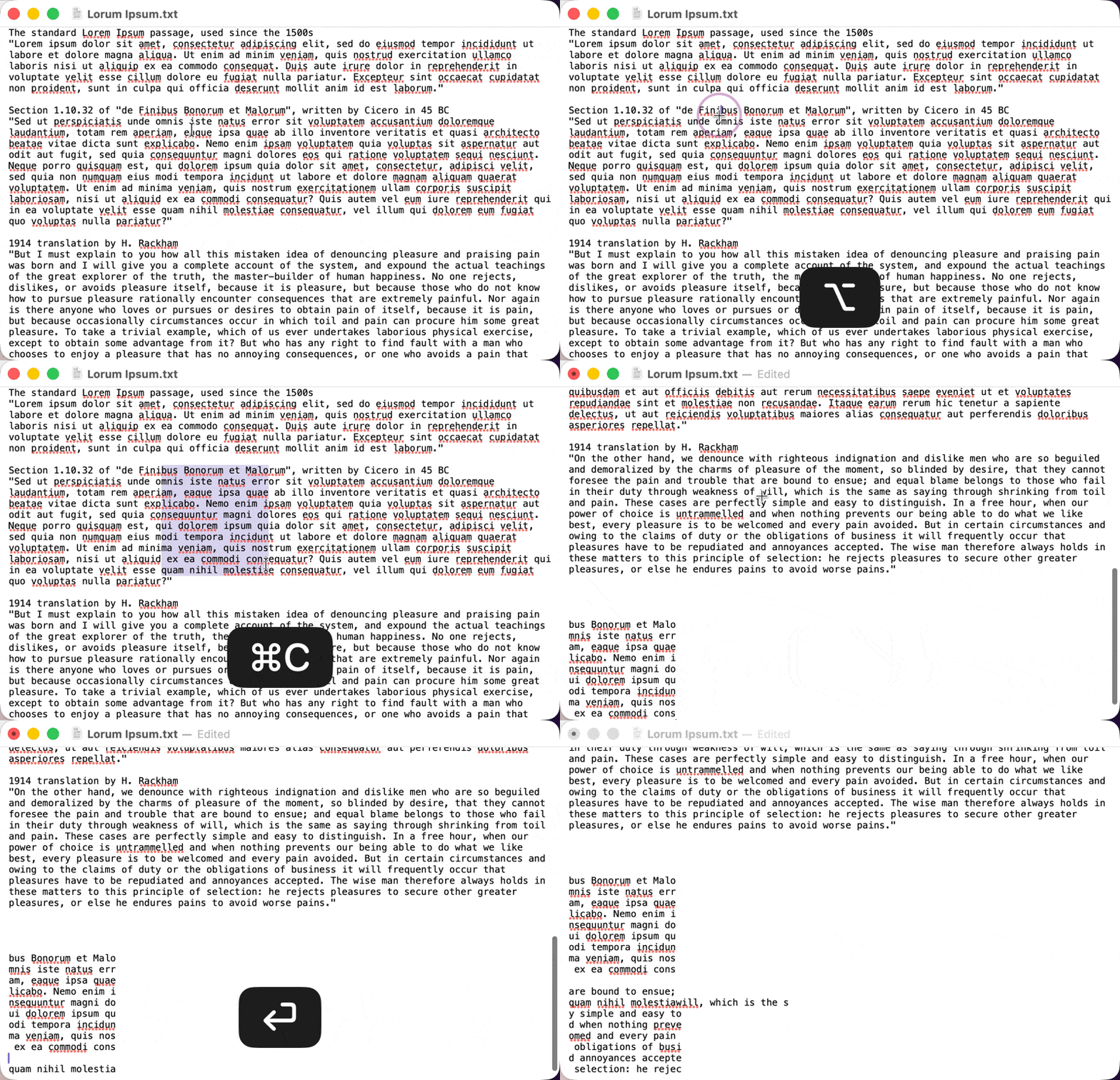
On Mac, you can make a rectangular "block" selection of text instead of the usual line-by-line selection — great for copying a column from a list without grabbing everything around it.
How to do it
Hold Option while you click and drag across text. Instead of flowing to the end of each line, your selection stays as a precise rectangle.
This works in TextEdit, Mail, Notes, Terminal, and most apps that use the standard macOS text system.
Where it's useful
- Tab-delimited data: Grab just one column without pulling in the text around it
- Log files: Extract values that start at a consistent character position across many lines
- Plain text tables: Delete or reformat a full column in one step
Bonus
Hold Option + Command and drag to create a second rectangular selection without losing the first — handy when you need to grab two non-adjacent columns at once.