Hold Option While Dragging to Duplicate
Holding Option while dragging something on macOS flips the gesture from "move" to "duplicate." It works almost everywhere the system accepts a drag — Finder, Notes, design apps, browser tabs — and saves you the ⌘C / ⌘V round-trip more times a day than you'd think.
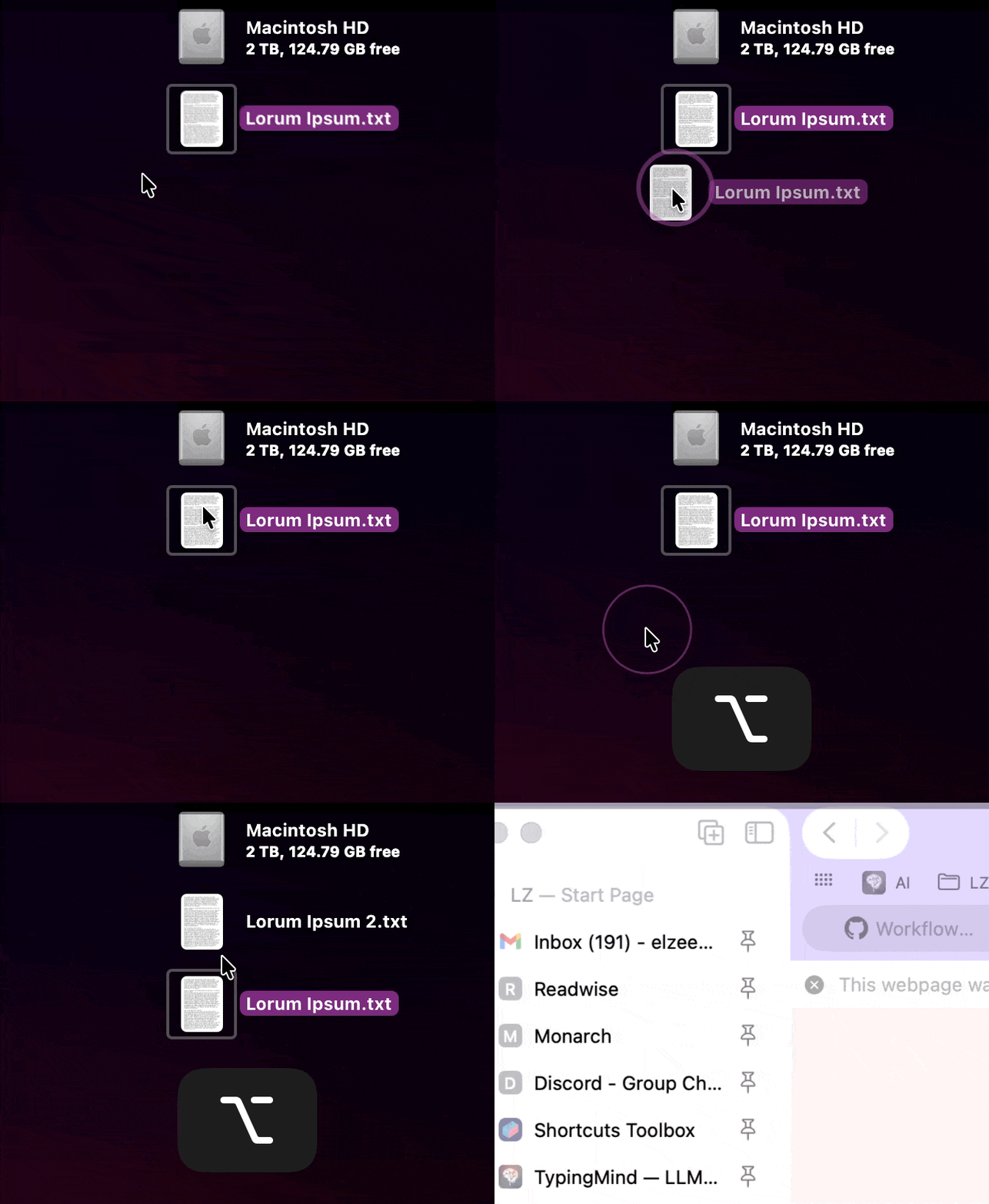
How to do it
Start your drag, then press and hold Option before releasing. The cursor picks up a small green plus (+) badge — that's your "copy, don't move" confirmation. Let go where you want the duplicate to land.
It works either order: you can hold Option before you start, or add it mid-drag. macOS updates the cursor badge the moment the modifier engages.
Why it's useful
The unexpected part is that Finder's default drag behavior depends on the destination:
- Same volume (dragging between two folders on the same disk) → the default is move
- Different volume (dragging to an external drive or a network share) → the default is copy
That inconsistency is where mistakes happen: you expect a copy, you get a move, and now your file is somewhere you didn't mean to put it. Holding Option makes the intent explicit — it always copies, regardless of destination.
Where it works beyond Finder
Option-drag is a system-wide convention that ships with practically every macOS app that supports drag-and-drop:
- Notes, Reminders, Mail — duplicate items between folders
- Pages, Keynote, Numbers — duplicate shapes, text boxes, slides
- Figma, Sketch, Adobe apps — duplicate layers, components, artboards
- Safari, Chrome, Arc — drag a tab while holding Option to duplicate it into a new window
Related Finder modifiers
Once you know Option-drag exists, two siblings are worth remembering:
- ⌘ Command + drag — forces a move across volumes (inverse of the default)
- ⌘ Option + drag — creates an alias (shortcut / symlink) instead of a copy
Further reading
Apple documents this under Drag and drop items on Mac in the macOS User Guide — the section on copying items by pressing Option while dragging.