Tip
Find Your Lost Apple TV Remote with Your iPhone
The Siri Remote has a habit of disappearing into couch cushions. If you have an Apple TV 4K (2021 or later) with a 2nd or 3rd generation Siri Remote, your iPhone can help you find it — no Find My app required.
How to find it
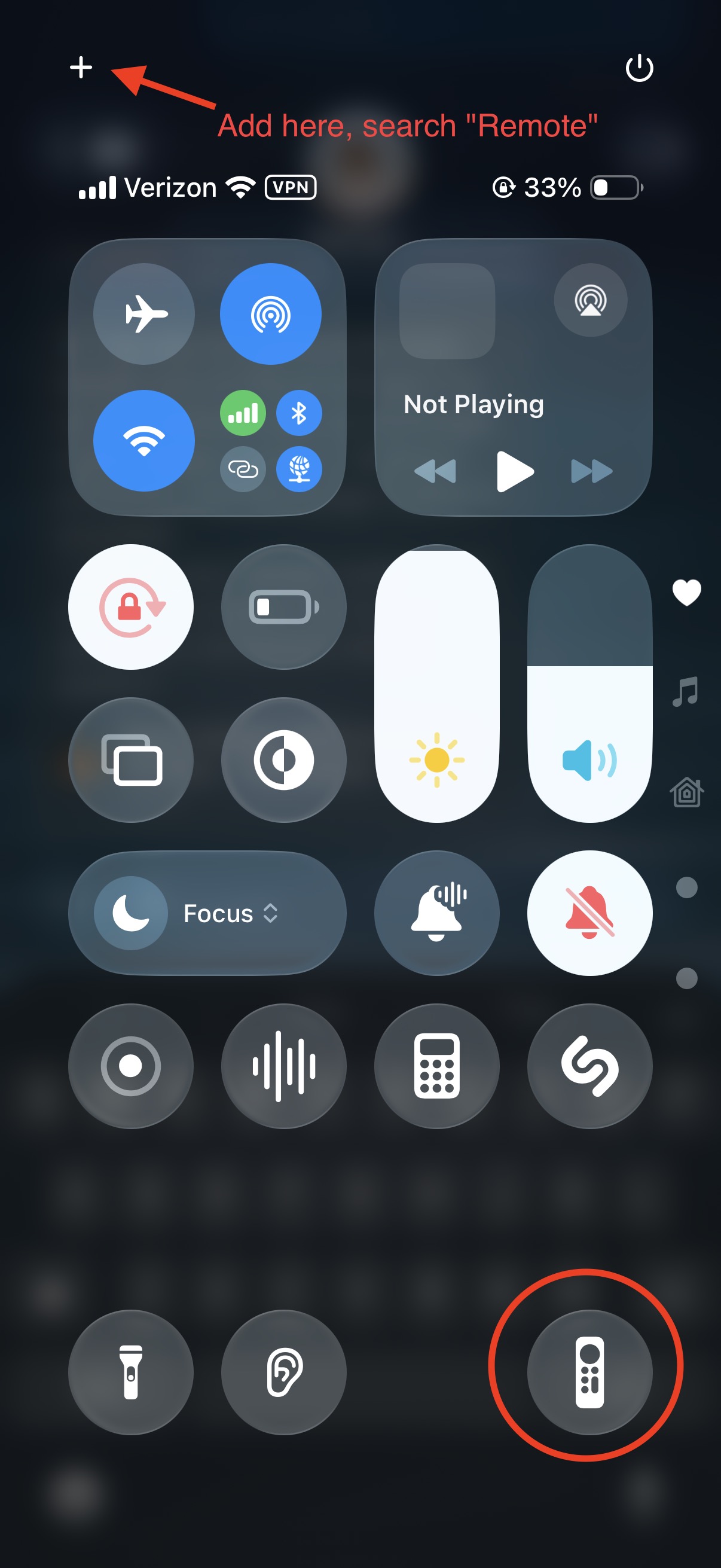
- Swipe down to open Control Center on your iPhone
- Tap the Apple TV Remote button (the remote icon at the bottom of Control Center)
- Tap the name of your Apple TV from the device list — each one shows a Find button next to it
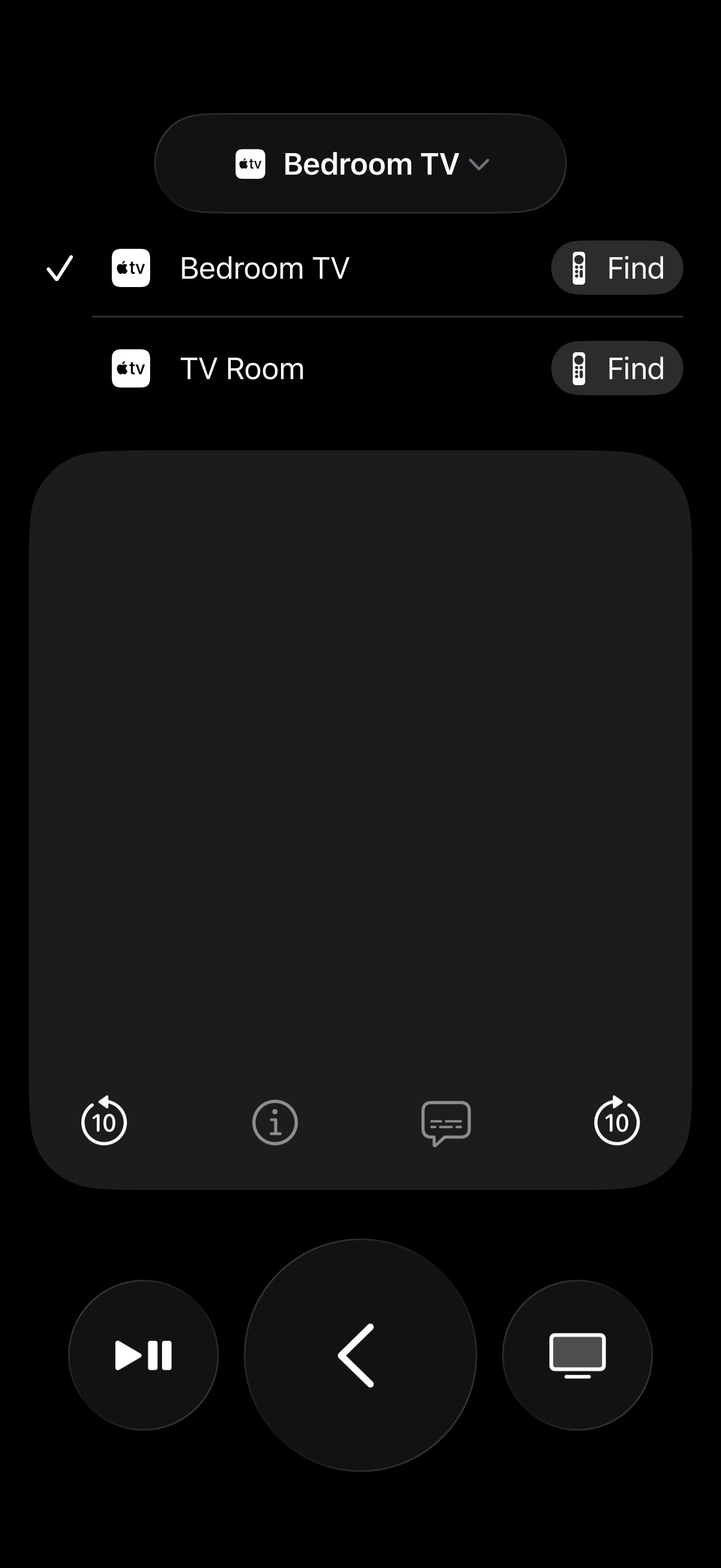
- Tap Find
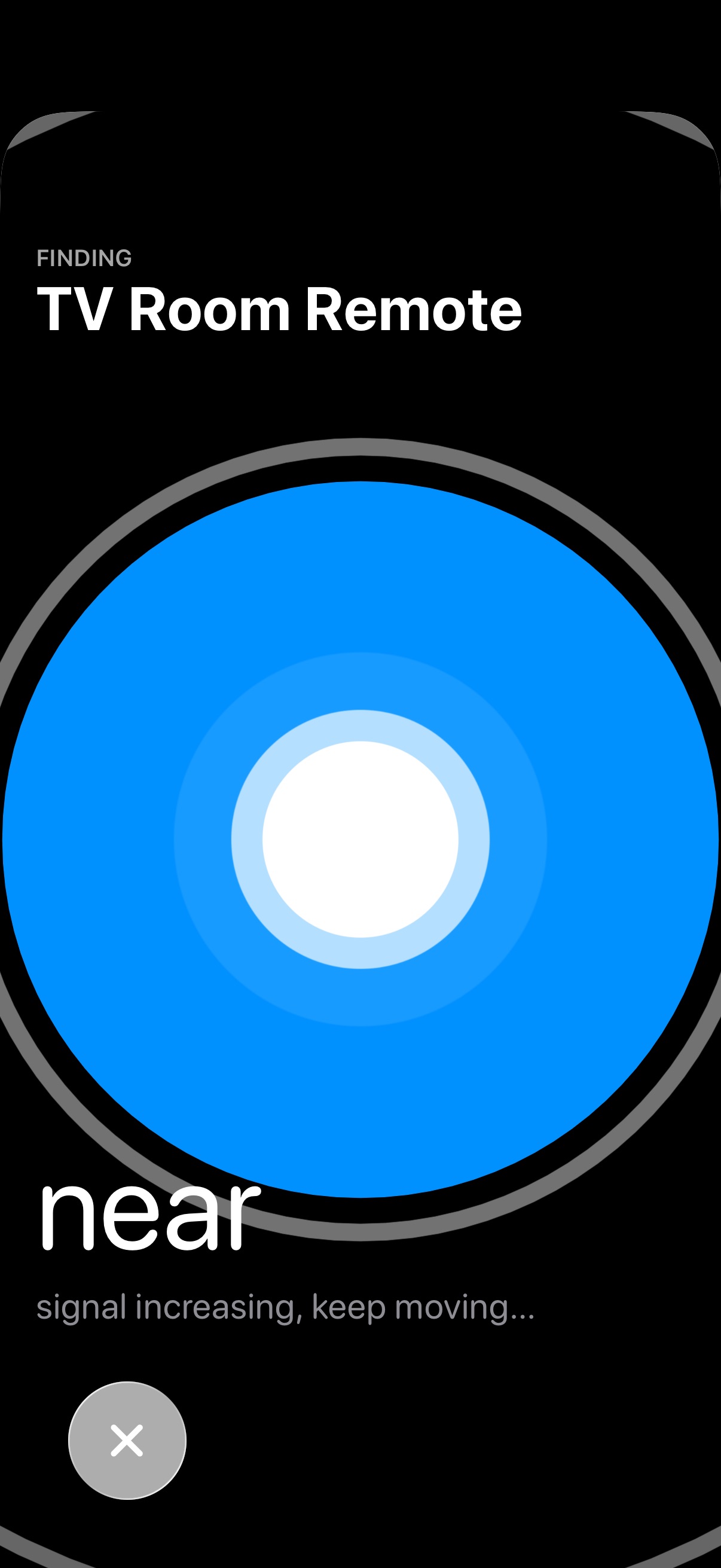
Your iPhone will start scanning for the remote using Bluetooth. An onscreen circle guides you — it grows larger and changes from "Far" to "Near" to "Here" as you get closer. The remote doesn't make a sound; your phone does the detecting.
Requirements
- iPhone with iOS 17 or later
- Apple TV 4K (2021 or 2022 model) with tvOS 17 or later
- 2nd or 3rd generation Siri Remote
Good to know
- This works via Bluetooth only — the remote doesn't have a speaker, so there's no "play a sound" option like with AirTags
- The remote doesn't need to be connected or in range to your Apple TV — just in range of your iPhone
- If your Apple TV is older (original 4K or Apple TV HD), the remote won't have the Bluetooth chip needed for this feature
- The remote needs some battery remaining — a completely dead remote won't respond
For more details, see Apple's guide on locating the Apple TV 4K remote.