Tip
Filter HomeKit Accessories by Category on the Home Tab
When the Home app got its big redesign in iOS 16 and macOS Ventura, the old Rooms tab went away and a new shortcut row took its place: a strip of category tiles (Climate, Lights, Security, Speakers & TVs, Water) that filter your HomeKit accessories down to just one type at a time.
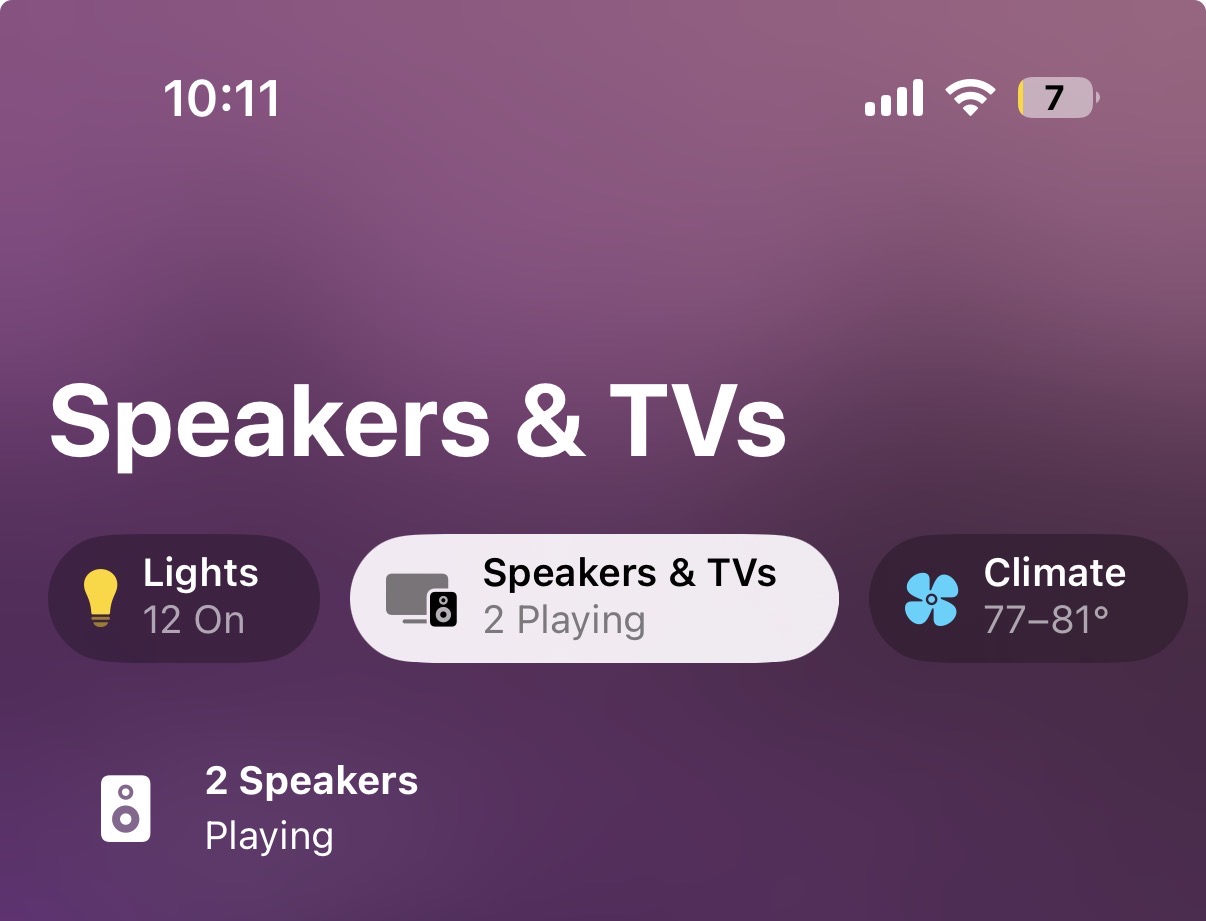
It's a small thing but it removed the biggest annoyance of the original Home app — hunting for a single light switch in a wall of accessory tiles.
How to use it
- Open the Home app
- Stay on the main Home tab
- Look for the row of category tiles below the camera grid (or near the top if you don't have cameras)
- Tap any category — Climate, Lights, Security, Speakers & TVs, or Water
- The screen filters down to only accessories of that type, organized by room
Tap the Home tile (top-left) to jump back to the full overview.
Good to know
- The category row replaces the old Rooms tab entirely. Rooms still exist — you'll see them as section headers inside each category — but you don't need to switch tabs anymore.
- The same category row appears on iPad and Mac, so the layout is consistent across devices.
- If you only have one or two accessory types (e.g. just lights and a thermostat), the row only shows the categories you actually own — no empty buckets.
- Categories were added alongside the multi-camera grid view in the same iOS 16 redesign. The two work well together: the camera grid up top, the category filters right below.
For Apple's overview of the Home app interface, see Intro to Home on iPhone.