Tip
App Privacy Report
See exactly which apps are accessing your camera, microphone, location, contacts, and other sensitive data — and how often.
How to turn it on
- Open Settings → Privacy & Security
- Scroll down and tap App Privacy Report
- Tap Turn On App Privacy Report
It starts gathering data immediately, but it takes a few days of normal use before the report has much to show.
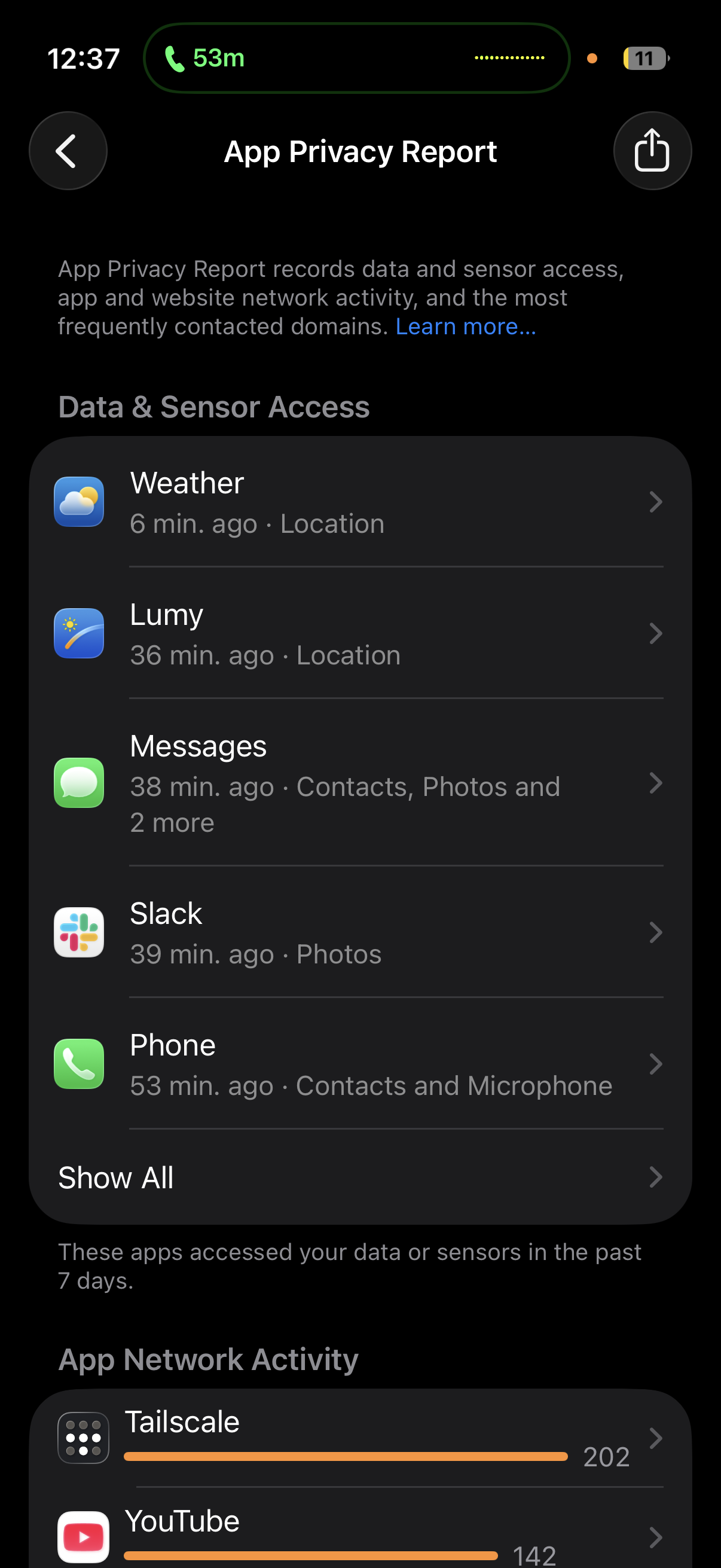
What it tracks
- Data & Sensor Access — how many times and when each app accessed your location, photos, camera, microphone, contacts, and more over the past 7 days
- App Network Activity — which internet domains each app contacted (directly or from embedded content)
- Website Network Activity — which domains were contacted by websites you visited within apps
- Most Contacted Domains — the web domains your apps reach out to most frequently
Good to know
- All report data is encrypted and stored only on your device — nothing is sent to Apple.
- Turning off App Privacy Report also clears all collected data from your device.
- Requires iOS 15.2 or later (originally called "Record App Activity" before the full report UI was added).
For full details, see Apple's App Privacy Report documentation.